
When I work on projects and I need to play around with existing data, I always like to create a temporary table with the same structure as the existing table in question. This helps me prevent any issues or discrepancies or any data loss. If you are familiar with Microsoft SQL, you may be wondering what the post has to do with the Power Platform since this can be done directly in SQL. Some folks have access to connect directly to a SQL Server via SQL Management Studio, but some others do not. Additionally, I will be expanding on the Power Platform + MS SQL posts because I would like to show folks how to perform many SQL-related tasks via Power Apps and Power Automate. And with that said, let’s do the one I consider to be the easiest.
Scenario:
I have a SQL table named PA_SQL_Bulk_Insert that I want to replicate so I can test against its data without affecting the live data.
Solution:
Before diving into the query that will be used to create a copy of my SQL table along with all its data, in the screenshot below you can see the table in question with its column, part of the data, and the number of rows it contains (5,005 rows).

- Go to https://make.powerautomate.com.
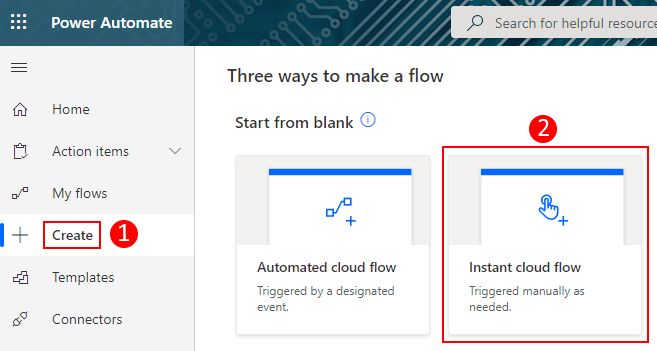
- Click on Create on the left menu and select Instant cloud flow.
- In the Build an instant cloud flow screen, enter the Flow name in the field, select Manually trigger a flow from the Choose how to trigger this flow *, and then click on Create.

- Once in the flow editor, click on the + New step button and search for and select the SQL Server connector. The from the list of SQL actions, select Execute a SQL query (V2).

- In the Execute a SQL query (V2) action, set the *Server name, *Database name, and query. For the query field, set it to:
SELECT *
INTO PA_SQL_Bulk_Insert_Backup
FROM PA_SQL_Bulk_Insert- Once everything is set, save the flow and run it.
- After the flow runs, you can see the new table has been created in the SQL database.

Please give this a try and let me know in the comments section below. Thank you for reading and have a wonderful day 😀
Photo by Anton Maksimov 5642.su on Unsplash
 Fausto Capellan, Jr